Localization in Windows Store Apps: Supporting Multiple Languages – Boredom Challenge Day 3

Standard

When you are developing an app, supporting multiple languages simply ensures you a wider audience, and users generally feel better about an app when it is in their native language. I’ve also seen it many times where a user gives a very low rating to an otherwise good app only because it doesn’t support their native language (yes, users are ruthless :)). Therefore, it is a good idea to add a mechanism which either allows the user to select/change the app’s language, or detects the system’s language programatically and uses it in the app.

In English.

In English.

Same page in Turkish.

Same page in Turkish.

In this article, we will see how we can make a Windows Store application which supports multiple languages, and how we can detect the system’s own language.

➤ Continue / Devam / Weiter / Continuare / Continuer

Mixing Light and Dark Themes in a Windows Store App – Boredom Challenge Day 2

Standard

When developing a Windows Store app, you get to set the default theme of you app, Dark or Light. This value determines the system brush resources for your app – therefore the colors of your controls. The theme is set in the App.xaml file, and can not be changed in runtime; so we need to pick a theme and stick with it.
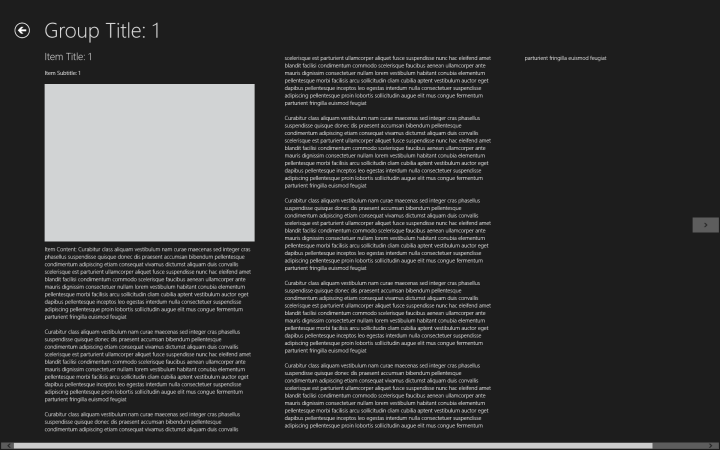
An app in Dark theme.
An app in Dark theme.

The same app in Light theme.

The same app in Light theme.

This is generally not a problem, but as you can guess sometimes you may need to mix things up a little. For example, in your Dark themed app, you may need to have a page with a white background, or if you have a custom background (like a picture), some of your controls may be unseen on a specific part of the picture. When this happens, it can result in your control not being easily seen (or not being seen at all).

To fix this for simple controls that do not have states (like a textblock), just setting the foreground will be enough. However, if you wish to change the color of a more complex control, such as a button, after changing it’s foreground – background – border colors you’ll see that either a) it partially works but the button is not entirely visible when you hover over it, click it, or when it is disabled and thus looks bad, or b) it doesn’t work at all.

The same app, when themes collide.

The same app, when themes collide.

After spending 2 hours just for the color of single button, I have found a solution (which is definitely not elegant, but it works), and in this article we will make an example app that demonstrates how we can mix these two themes.

➤ Let’s make our app look like Yin Yang ☯☯☯☯☯☯☯☯☯☯☯☯☯☯☯

Parsing HTML in Windows Store Apps – Boredom Challenge Day 1

Standard

By reading and parsing the HTML code of a given website, we can effectively display any information on that website in our application in any way we desire. This is usually needed when our source does not provide a web service or API that we can use, but show the information we need on its own webpage. For example, if we want to make an app that shows information about the latest movies, we can read and parse the HTML of a movie site and then present it in our application.

Part of the HTML code of my blog's main page.

Part of the HTML code of my blog’s main page.

For this article, we’ll make a simple Windows Store app which will get the link of a Windows Phone app on the Windows Phone Marketplace and then parse that page’s HTML to show its information, by using HTML Agility Pack.

➤ Let’s parse some HTML…

Adding a Public Twitter Feed to a Windows Store App

Standard

Hi everyone,

Due to its compact nature, Twitter can be used to provide content about a specific topic or to provide latest news to users in a quite efficient way. For example, an app about the latest news in technology could get the latest tweets with a specific hashtag, or a news app can get the latest tweets from the Twitter accounts of news agencies. We can even add further functionality and allow the user to open the links in a tweet, or go to the Twitter account page of the poster. Adding such a public Twitter feed is usually a good addition to an app, and does not require the user to log in with his/her Twitter account.

1

In this article, we will be making a simple Windows Store app that uses Twitter REST API v1.1 to get the latest tweets for a specific hashtag, and we’ll also allow the user to open the poster’s account page for a selected tweet.

➤ Let’s see how we can add a Twitter feed…

Windows Store Uygulamalarında XML Serialization

Standard

Serialization, en genel haliyle bir veri yapısını ya da nesneyi saklanabilecek ya da taşınabilecek bir biçime dönüştürme işlemidir. Bu işlemin amacı genelde bir veri yapısını dosya içinde saklamak ya da ağ üzerinden bir başka konuma aktarabilmektir, ki bu sayede ardından deserialization işlemi uygulanarak nesneye istenilen zamanda ya da konumda ulaşılabilir.

Buna örnek olarak bir haber uygulamasını verebiliriz: Haberleri ilk açılışında internetten çekip, ardından serialization işlemi uygulayarak bir dosyaya kaydedebilir, sonrasında ise güncellemesi için belirli bir süre geçmediği takdirde her açılışta haberleri sıfırdan indirmek yerine dosyadan çok daha hızlı bir şekilde okuyarak kullanıcıya gösterebilir (ya da, haberlerin indirilmesi uzun sürüyorsa, bu süre içerisinde ekranın boş olmaması için en son indirdiği haberleri gösterebilir). Başka bir örnek de, bir kullanıcının Facebook’taki hareketlerini Facebook’a bağlanarak almak istediğimizde bize bunu serialization uygulanmış halde vermesini ve bizim kendi uygulamamızda bunu deserialization ile uygun bir sınıfa dönüştürmemizi verebiliriz.

Bu yazımda, bir Windows Store uygulamasında kendi sınıfımızın bir listesini XML Serialization kullanarak dosyaya kaydedip, ardından okuyan örnek bir uygulama oluşturacağız.

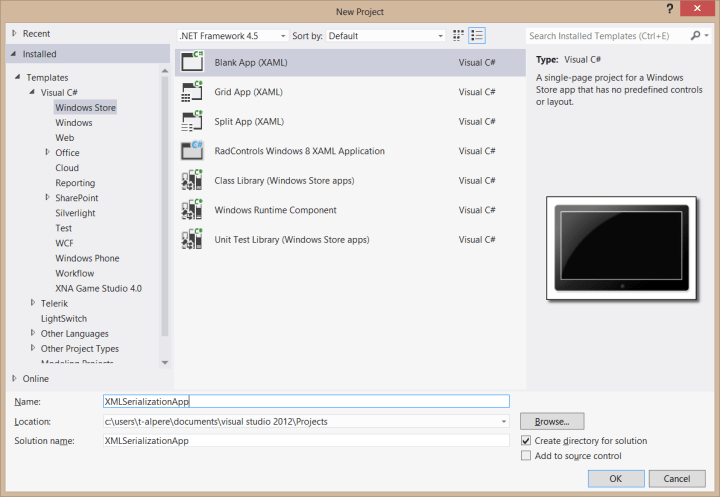
Bunun için Visual Studio 2012’yi açıp, yeni bir Windows Store Blank App projesi açalım.

1

➤ Devamını okuyun…

Making Simple Animations with Blend in Windows Store Apps

Standard

When making an application, using animations is a good way to impress the user and make your application look better. Either for making a more lively menu with sliding buttons or adding some visual effects to the background, animations come as a very simple yet powerful tool for good looking applications. In this article we will be developing a Windows Store application that contains several different animations which show several different features.

I will explain how animations work as we build our application, so we will start with opening up Visual Studio and creating a new Windows Store app.

1

In the MainPage.xaml, add a button which will be used to start the animation.

    <Grid Background="{StaticResource ApplicationPageBackgroundThemeBrush}">
        <Button x:Name="startAnimationButton" Content="Let the show begin" HorizontalAlignment="Left" Margin="100,100,0,0" VerticalAlignment="Top"/>
    </Grid>

Then, right-click MainPage.xaml and select “Open in Blend”.

2

➤ Let’s see what we can make with animations…

Using and Debugging Background Tasks in Windows Store Apps

Standard

When we are developing a Windows Store app, we may need to do something even if our application is suspended or closed; such as updating our live tile, showing a tile notification, syncing data or performing another specific action. Since Windows 8 is an operating system that emphasizes on power saving, we are not allowed to keep our application working in the background. Therefore, to have this functionality Windows 8 supports a background task system which allows us to define a background task (basically, our own lines of code) that will be executed periodically or when certain conditions are met. An example for this would be the Store application on the start screen, which periodically checks if there are updates to our installed apps, but does so when we have an internet connection.

1

Before moving on to developing our application, there are a few key points we need to know about background tasks. Background tasks have CPU and network constraints, we can not execute code that takes a long time to complete in our background tasks. The network constraint is active only when the device is on battery, and it is not calculated in terms of bandwidth but the amount of battery used by the connection. The limits of these constraints change depending on the type of the background task used.

If it is an application that needs to be frequently updated (such as a mail or VOIP app), the app will need to placed on the lockscreen but the background task will have a more relaxed resource management (2 seconds of CPU time). The catch is that the maximum number of apps that can be on the lockscreen at the same time is 7, so your user will need to add your app to the lockscreen in order your background task to work. If the application does not need to be updated that frequently, however, we can use a maintenance task, which doesn’t require the app to be on lockscreen and will be triggered based on certain conditions, but has a more restrict resource management (1 second of CPU time).

2

➤ Let’s see how background tasks work…

Using Microsoft Translator in Windows Store Apps

Standard

Microsoft Translator is a translation portal by Microsoft as part of Bing services that can provide a machine-translation of texts or entire web pages in (currently) 40 different languages. Microsoft Translator also provides a set of web service APIs (that can be called via an HTTP REST service, an AJAX callable service, or a SOAP service) for developers who wish to use Microsoft Translator in their applications. In this article we will develop a Windows Store application that uses the SOAP service of Microsoft Translator to translate text between languages, and if supported, speak the translated text.

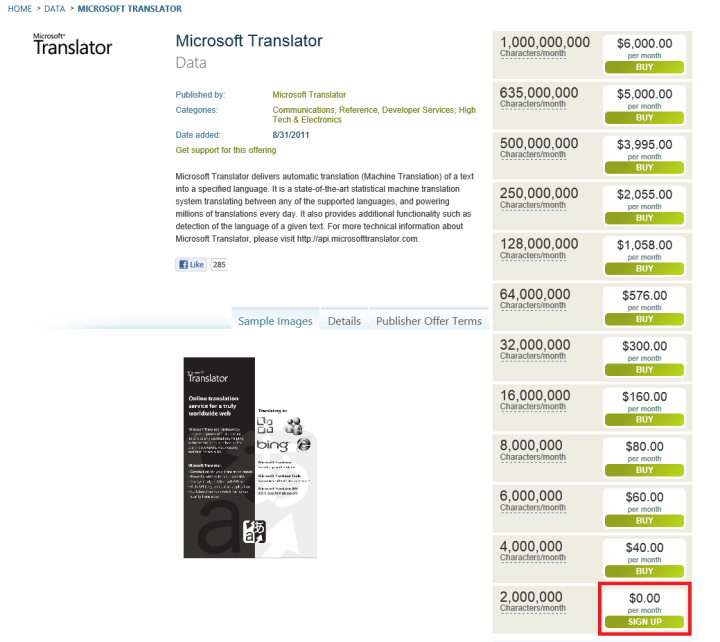
Microsoft Translator is available on Windows Azure Marketplace and is licensed monthly based on the number of characters sent to the translation service. However, it is free up to 2.000.000 characters each month, so we can just sign up and start using it for free.

We will start by going to Windows Azure Marketplace and signing in with our Live ID. If you don’t have a Windows Azure Marketplace account associated with the Live ID you used to sign in, you will simply create one by entering your name, surname, country (and optionally your organization).

1

2

After your registration is complete, either search for “Microsoft Translator” on Windows Azure Marketplace or click here to go to Microsoft Translator page, and click Sign Up at the bottom offer (2.000.000 characters).

3

➤ Let’s see how we can use Microsoft Translator…

Using IValueConverter in Windows Store Apps

Standard

When using data binding, we may sometimes want to alter the data before presenting it to user, or we may want to change the appearance of something based on the value of the data. For example, assuming we are binding a date value, we may want to change its formatting, or we may want to change the background color based on whether the date is before or after the current date, or even show something special on certain dates (such as flowers on February 14th).

When we bind a list of items to a control (such as GridView or ListView), we can not edit individual templates of the items. We may also be getting our data from another source, such as a webservice, so we may not have control over the data we receive. So, in order to implement the features I’ve explained on the previous paragraph, we will need to use IValueConverter interface, which provides exactly what we need. In this article, we will be developing a Windows Store application that uses the IValueConverter interface.

We’ll start by opening Visual Studio and creating a new Windows Store Blank App project. I’m naming the project IValueConverterApp.

1

For this example, we will have a list of students. Our students will have a grade between 0 and 100. Our application will display these students, but their grades will need to be in letters (between FF and AA), the item color will be different based on the grade (100 – 80 will be green, 79 – 60 will be orange, and 59 – 0 will be red), and if the grade is 100 we will put a star next to the student’s name.

➤ Let’s see how we can use IValueConverter…

Windows 8 GridView GroupedHeaders with Semantic Zoom

Standard

Hi everyone,

In Windows Store applications, GridView control provides us a visually attractive, flexible and customizable way of presenting our data to the users. Although we can edit the ItemTemplate to show each item the way we want, there may be situations where we need to use more advanced features of the GridView. One of these situations is when we wish to group our data (dynamically), and put headers on top of the groups. Here’s an example, grouped by their month and year:

1

As you can see, this functionality can come in handy in many situations. However, before going on to explain how we can do this, there is another issue we should think of. What if we have a lot of items in our GridView, or the user wishes to look at an item at last group (in the previous example, the earliest date)? In that case, the user would need to do a good amount of scrolling, and that reduces the usability for our application. To prevent this in our Windows Store apps, we can use semantic zoom.

2

Semantic zoom allows the user to see the categories of the items with a pinch move (or with ctrl + mousewheel), and then select them to go directly to that group. In the example, you can see that items are grouped by their month and years. We can add semantic zoom to our grouped gridview so the users can select and go directly to their desired group.

➤ Let’s see how we can use grouped headers and semantic zoom…