
It is quite common to need to store our users’ usernames and passwords (or other critical information, such as access tokens) in our apps, so our users won’t have to sign in each time they use the app. However, although I’ve said this is commonly needed, we need to be careful when storing them because we can’t afford even a slightest chance of them being exposed.

So we’re talking about “Remember me” or “Keep me signed in” functionality.
In Windows Store apps, there is a small but potentially deadly pitfall when implementing this feature: Using application local settings for storing username and password. Application settings may be kept isolated from other apps and users but that isn’t enough. They are kept in the registry, and if you dig deep enough and know what you are doing, you may find a way to read them (check this link for starters). For example, in my previous blog posts where we integrated Facebook, we kept the user’s access token this way (for simplicity, of course), and if anyone were to read the application settings and find that token they could read our user’s timeline and/or post stuff on his/her behalf.

This is what will happen when your Facebook access token is exposed, at best.
Anyway, joking aside, the correct way to store critical information in Windows Store Apps is to use credential lockers; namely, the PasswordVault and PasswordCredential classes under Windows.Security.Credentials workspace, and in this article we’ll make an example app that keeps the user’s username and password securely.
➤ I have a feeling that “gay” joke is going to give me some headaches when my friends see it


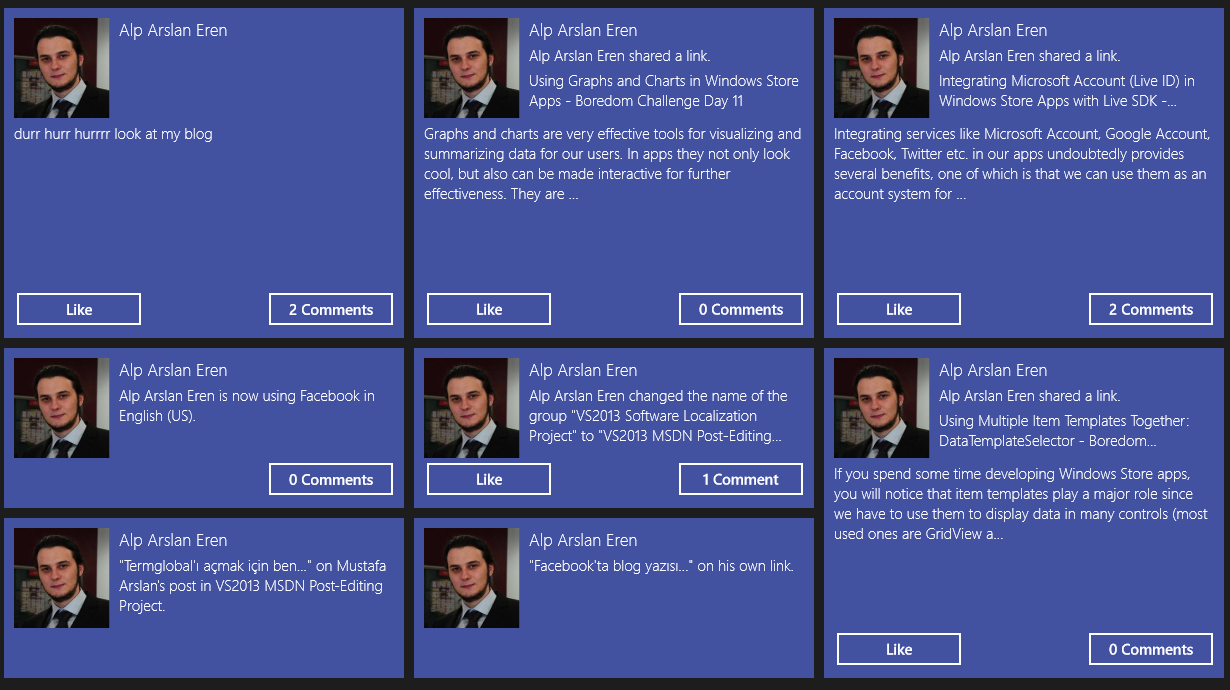
 For this purpose, we will use Facebook’s Graph API which allows us to do basically anything we could do on Facebook from inside our apps, and combine it with the Facebook SDK for .NET. Since there is a huge number of different functionalities provided by Graph API, I will be only showing about a handful of them (most used ones), so it is a good idea to keep the documentation for
  I’ve decided to split this article into several parts. In this first part, we will create a Windows Store app that signs the user in with a Facebook account, gets and displays our user’s information and finally allows our user to publish a status update. We’ll also see how we can get a long term access token from Facebook to keep our user signed in even after our app is closed.


 Alp Arslan Eren