Downloading Files with BackgroundDownloader in Windows Store Apps – Boredom Challenge Day 6

Standard

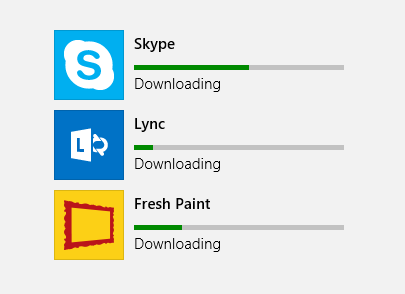
In one of my previous articles, I’ve mentioned the Background Transfer API for Windows 8, which allowed us to use BackgroundDownloader and BackgroundUploader classes for downloading and uploading files in our app. After mentioning it, I’ve decided to write an article about how we can use them.
1

Background Transfer API has many nice features that make our work easier, such as:

– Being able to download large files,
– Tracking download progress,
– Pausing / resuming download,
– Continuing download even when our app is in the background (suspended),
– If the app is closed mid-download, allowing us to continue the next time our app starts,
– Setting cost policy (wheter downloading when connected to metered connections or not),
– Handling network situations automatically (no need to catch exceptions if the network connection is lost mid-download, it’ll continue when internet comes back),
– Multiple downloads at the same time.

As always, we will create an example application that uses these features.

➤ “Please wait 357 minutes for your next download”…

Using a Public Dropbox File as Data Source for Our Apps – Boredom Challenge Day 5

Standard

If you are an individual developer (and especially a new-grad or a student), chances are you won’t have the resources to have a backend for your app, or maybe you need to just keep a small amount of information that you don’t want to get a server or hosting provider for. In this case, we can use an online storage service (SkyDrive, Dropbox, Google Drive, whatever you wish) to provide read only data for our apps.

1

For example, you want to create a TV app that gets video streams for multiple different TV channels. If you hard-code them into your app, you’ll start getting errors when a TV channel decides to change the address of their stream, and to replace it you have to change the link in your code and publish an update for you application (which will take several days, at least). Instead, you could put the links of the streams in a public file and then read them in your app when your app starts, which will give you the opportunity to change them any time, and your changes will be effective instantly. Heck, don’t just keep the links, keep the name and picture link and any other information you want about that TV channel (you can use XML or Json formatting) and then read all of this data in your app: This way you can instantly add new channels, edit existing ones or remove them whenever you want.

Therefore, if it is not a problem for the file to be publicly visible, this is a free (emphasis on free), quick, easy to use and effective method for providing read only data to our apps. In this article, we’ll use a public Dropbox file and see how we can use this in a Windows Store app.

➤ For bonus points, you can read app settings (like background color) from this file and change it whenever you want… 😛

How to Download and Save Files in a Windows Store App Using HttpWebRequest – Boredom Challenge Day 4

Standard

Although this may not be a frequently used feature, downloading and saving files from inside our app can be a cool addition, especially if our app is using social media or anything else where users may want to share files or pictures.

Normally, Windows 8 contains a Background Transfer API which provides us a class called BackgroundDownloader that is very useful if we need to download large files, and it comes with neat features such as tracking download progress, setting a cost policy and pausing support. However, this class is designed for more long term download operations and for small files it is more preferable to use http APIs. Using HttpWebRequest gives us a low level control over the download operation, which may be needed sometimes.

1

In this article, we will make an app that will download the file from a given link, save it to a place that user chooses, and open it with the default application associated with its extension.

➤ “Please wait 60 seconds before your download is ready”…

Localization in Windows Store Apps: Supporting Multiple Languages – Boredom Challenge Day 3

Standard

When you are developing an app, supporting multiple languages simply ensures you a wider audience, and users generally feel better about an app when it is in their native language. I’ve also seen it many times where a user gives a very low rating to an otherwise good app only because it doesn’t support their native language (yes, users are ruthless :)). Therefore, it is a good idea to add a mechanism which either allows the user to select/change the app’s language, or detects the system’s language programatically and uses it in the app.

In English.

In English.

Same page in Turkish.

Same page in Turkish.

In this article, we will see how we can make a Windows Store application which supports multiple languages, and how we can detect the system’s own language.

➤ Continue / Devam / Weiter / Continuare / Continuer

Mixing Light and Dark Themes in a Windows Store App – Boredom Challenge Day 2

Standard

When developing a Windows Store app, you get to set the default theme of you app, Dark or Light. This value determines the system brush resources for your app – therefore the colors of your controls. The theme is set in the App.xaml file, and can not be changed in runtime; so we need to pick a theme and stick with it.

An app in Dark theme.

An app in Dark theme.

The same app in Light theme.

The same app in Light theme.

This is generally not a problem, but as you can guess sometimes you may need to mix things up a little. For example, in your Dark themed app, you may need to have a page with a white background, or if you have a custom background (like a picture), some of your controls may be unseen on a specific part of the picture. When this happens, it can result in your control not being easily seen (or not being seen at all).

To fix this for simple controls that do not have states (like a textblock), just setting the foreground will be enough. However, if you wish to change the color of a more complex control, such as a button, after changing it’s foreground – background – border colors you’ll see that either a) it partially works but the button is not entirely visible when you hover over it, click it, or when it is disabled and thus looks bad, or b) it doesn’t work at all.

The same app, when themes collide.

The same app, when themes collide.

After spending 2 hours just for the color of single button, I have found a solution (which is definitely not elegant, but it works), and in this article we will make an example app that demonstrates how we can mix these two themes.

➤ Let’s make our app look like Yin Yang ☯☯☯☯☯☯☯☯☯☯☯☯☯☯☯

Parsing HTML in Windows Store Apps – Boredom Challenge Day 1

Standard

By reading and parsing the HTML code of a given website, we can effectively display any information on that website in our application in any way we desire. This is usually needed when our source does not provide a web service or API that we can use, but show the information we need on its own webpage. For example, if we want to make an app that shows information about the latest movies, we can read and parse the HTML of a movie site and then present it in our application.

Part of the HTML code of my blog's main page.

Part of the HTML code of my blog’s main page.

For this article, we’ll make a simple Windows Store app which will get the link of a Windows Phone app on the Windows Phone Marketplace and then parse that page’s HTML to show its information, by using HTML Agility Pack.

➤ Let’s parse some HTML…

Starting a new series called.. Boredom Challenge

Standard

Ok, let me explain. When I look at my blog, I see that I managed to write at most 6 blog posts in a month, and most of the time I didn’t post anything for long periods. Since this is kind of annoying me – and also because I’m bored (hence the name) – I’ve decided to make a challenge for myself and called it the Boredom Challenge.

The challenge is, I will be writing a new blog post every day for the next 30 days. My aim is to write full blog posts (not short ones, like tips or tricks). I think their topics will be about Windows 8, Windows Phone and Windows Azure (naturally) but I haven’t thought out the topic of every day’s post so I don’t exactly know what I will end up writing.

Let’s see if I can keep up.

Adding a Public Twitter Feed to a Windows Store App

Standard

Hi everyone,

Due to its compact nature, Twitter can be used to provide content about a specific topic or to provide latest news to users in a quite efficient way. For example, an app about the latest news in technology could get the latest tweets with a specific hashtag, or a news app can get the latest tweets from the Twitter accounts of news agencies. We can even add further functionality and allow the user to open the links in a tweet, or go to the Twitter account page of the poster. Adding such a public Twitter feed is usually a good addition to an app, and does not require the user to log in with his/her Twitter account.

1

In this article, we will be making a simple Windows Store app that uses Twitter REST API v1.1 to get the latest tweets for a specific hashtag, and we’ll also allow the user to open the poster’s account page for a selected tweet.

➤ Let’s see how we can add a Twitter feed…

Windows Azure Cloud Service Web.config Dosyası Şifreleme

Standard

Bir web servis için web.config dosyası gerekli yapılandırma ayarlarını içerir. Bu yapılandırma ayarlarından bazıları hassas bilgiler içerebilir, örneğin web servis bir veritabanına bağlanıyor ise bu veritabanı için gerekli bağlantı dizesi (connection string) web.config içerisinde plain text olarak durur ve veritabanının bulunduğu sunucu için gerekli kullanıcı adı ve şifreyi içerir. Bu durum tabi ki olası bir güvenlik açığıdır; eğer web servisi bir üçüncü parti sunucuda tutmayı planlıyorsak, ya da kaynak koduna bu bilgiye sahip olmasını istemediğiniz kişilerin erişmesi gerekiyorsa, ekstra bir güvenlik katmanı sağlamak için bu bilgiyi şifreleyebiliriz.

  <connectionStrings>
    <add name="DatabaseConnectionString" connectionString="Data Source=blablabla.database.windows.net;Initial Catalog=BlaBlaDB;User ID=kullaniciadi;Password=sifre"
      providerName="System.Data.SqlClient" />
  </connectionStrings>

.NET Framework, bilgilerimizin yukarıdaki gibi gözükmemesini sağlamak için “protected configuration” adı verilen bir özellik ile şifreleme imkanı sağlar ve bu şifrelemeyi DpapiProtectedConfigurationProvider veya RsaProtectedConfigurationProvider sınıflarını kullanarak gerçekleştirir. Ancak bu iki yöntemde de şifrelemenin web servisin bulunacağı sunucu üzerinde uygulanması gerekir, çünkü şifreleme için makineye özel bir anahtar değeri kullanılır ve bu durum da Azure üzerinde bu özelliği kullanamayacağımız anlamına gelir.

Azure üzerinde web.config dosyasını şifrelemek istiyorsak özel bir “protected configuration provider” kullanmamız gerekli. Bu yazımda, şifreleme için bir “.pfx” uzantılı sertifika ve Windows Azure Certificate Store kullanarak şifreleme yapan özel “Pkcs12 Protected Configuration Provider” ile Azure üzerindeki web servisimizin web.config dosyasını şifreleyeceğiz.

➤ Devamını okuyun…

Windows Store Uygulamalarında XML Serialization

Standard

Serialization, en genel haliyle bir veri yapısını ya da nesneyi saklanabilecek ya da taşınabilecek bir biçime dönüştürme işlemidir. Bu işlemin amacı genelde bir veri yapısını dosya içinde saklamak ya da ağ üzerinden bir başka konuma aktarabilmektir, ki bu sayede ardından deserialization işlemi uygulanarak nesneye istenilen zamanda ya da konumda ulaşılabilir.

Buna örnek olarak bir haber uygulamasını verebiliriz: Haberleri ilk açılışında internetten çekip, ardından serialization işlemi uygulayarak bir dosyaya kaydedebilir, sonrasında ise güncellemesi için belirli bir süre geçmediği takdirde her açılışta haberleri sıfırdan indirmek yerine dosyadan çok daha hızlı bir şekilde okuyarak kullanıcıya gösterebilir (ya da, haberlerin indirilmesi uzun sürüyorsa, bu süre içerisinde ekranın boş olmaması için en son indirdiği haberleri gösterebilir). Başka bir örnek de, bir kullanıcının Facebook’taki hareketlerini Facebook’a bağlanarak almak istediğimizde bize bunu serialization uygulanmış halde vermesini ve bizim kendi uygulamamızda bunu deserialization ile uygun bir sınıfa dönüştürmemizi verebiliriz.

Bu yazımda, bir Windows Store uygulamasında kendi sınıfımızın bir listesini XML Serialization kullanarak dosyaya kaydedip, ardından okuyan örnek bir uygulama oluşturacağız.

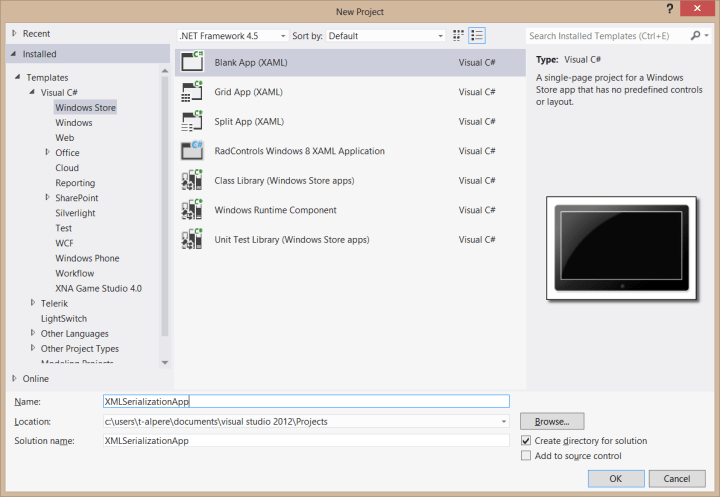
Bunun için Visual Studio 2012’yi açıp, yeni bir Windows Store Blank App projesi açalım.

1

➤ Devamını okuyun…