Creating and Using Custom User Controls in Windows Store Apps – Boredom Challenge Day 7

Standard

In a software, user controls are the building blocks of the user interface. A user control is basically a piece of interface and code mixture that is designed for a specific action or purpose, and they provide the interaction between users and our app. They range from simple textblocks to more complex ones such as buttons, sliders, scrollbars, lists and grids, or to even more complex ones such as webviews, maps, pie charts or graphs. As developers, we can customize these user controls as much as they allow, like changing their texts, colors, sizes or even events (like what happens when we click a button or move a slider).

Another aspect of user controls is this: They are repeated a lot. Think what would happen if you wanted to put a button to your app but there weren’t any button controls. You would need to put a rectangle first, then a textblock in front of it, then set a click event, then arrange it’s animations for clicking and so on. Just for one button. Then if you wanted to put another button, you would need to copy all that you’ve prepared and paste it to the place you want, which would result in an absurdly big markup code composed completely of basic controls and a maintenance nightmare.
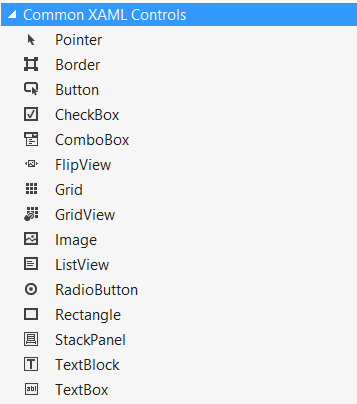
Some of the XAML user controls in Windows Store apps.

Ok then, now that we know what user controls are and why they’re nice, we’ll come to the custom user control part. Well, apart from default user controls, you can broaden the number of your user controls via adding other libraries (for Windows Store apps, like WinRT XAML Toolkit, Telerik RadControls for Windows 8 or Bing Maps control). However, you might still have a specific part of your interface (unique to your needs) that you need to repeat a lot. If this is the case, we can create a custom user control composed of other user controls that will make our work a lot easier.

Before going on to make an example app, I’d like to make it clear how custom controls are useful in Windows Store apps:
– They increase maintainability. If you want to change how it looks or works later, just make your changes to the custom user control, instead of not using a user control and changing it in every place you’ve used.
– Combined with data binding, they can be very powerful and dynamic.
– Especially useful in places where you don’t have a codebehind file, such as the item templates for gridviews or listviews. Without them, you will not be able to easily put buttons or other interactive user controls in your item template.

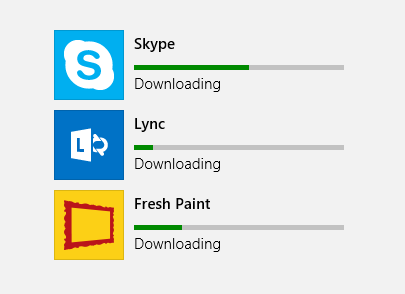
Alright alright, enough ranting, let’s create an example app. 🙂 We’ll now create a Windows Store app which will have a custom user control in a GridView item template. It will be a mockup app, where we will show the user his/her incoming friendship requests and the user will either accept or ignore them. 🙂

➤ For bonus points, you can create custom controls and put them on the internet for other people to use…

Downloading Files with BackgroundDownloader in Windows Store Apps – Boredom Challenge Day 6

Standard

In one of my previous articles, I’ve mentioned the Background Transfer API for Windows 8, which allowed us to use BackgroundDownloader and BackgroundUploader classes for downloading and uploading files in our app. After mentioning it, I’ve decided to write an article about how we can use them.

1

Background Transfer API has many nice features that make our work easier, such as:

– Being able to download large files,
– Tracking download progress,
– Pausing / resuming download,
– Continuing download even when our app is in the background (suspended),
– If the app is closed mid-download, allowing us to continue the next time our app starts,
– Setting cost policy (wheter downloading when connected to metered connections or not),
– Handling network situations automatically (no need to catch exceptions if the network connection is lost mid-download, it’ll continue when internet comes back),
– Multiple downloads at the same time.

As always, we will create an example application that uses these features.

➤ “Please wait 357 minutes for your next download”…

Using a Public Dropbox File as Data Source for Our Apps – Boredom Challenge Day 5

Standard

If you are an individual developer (and especially a new-grad or a student), chances are you won’t have the resources to have a backend for your app, or maybe you need to just keep a small amount of information that you don’t want to get a server or hosting provider for. In this case, we can use an online storage service (SkyDrive, Dropbox, Google Drive, whatever you wish) to provide read only data for our apps.

1

For example, you want to create a TV app that gets video streams for multiple different TV channels. If you hard-code them into your app, you’ll start getting errors when a TV channel decides to change the address of their stream, and to replace it you have to change the link in your code and publish an update for you application (which will take several days, at least). Instead, you could put the links of the streams in a public file and then read them in your app when your app starts, which will give you the opportunity to change them any time, and your changes will be effective instantly. Heck, don’t just keep the links, keep the name and picture link and any other information you want about that TV channel (you can use XML or Json formatting) and then read all of this data in your app: This way you can instantly add new channels, edit existing ones or remove them whenever you want.

Therefore, if it is not a problem for the file to be publicly visible, this is a free (emphasis on free), quick, easy to use and effective method for providing read only data to our apps. In this article, we’ll use a public Dropbox file and see how we can use this in a Windows Store app.

➤ For bonus points, you can read app settings (like background color) from this file and change it whenever you want… 😛

How to Download and Save Files in a Windows Store App Using HttpWebRequest – Boredom Challenge Day 4

Standard

Although this may not be a frequently used feature, downloading and saving files from inside our app can be a cool addition, especially if our app is using social media or anything else where users may want to share files or pictures.

Normally, Windows 8 contains a Background Transfer API which provides us a class called BackgroundDownloader that is very useful if we need to download large files, and it comes with neat features such as tracking download progress, setting a cost policy and pausing support. However, this class is designed for more long term download operations and for small files it is more preferable to use http APIs. Using HttpWebRequest gives us a low level control over the download operation, which may be needed sometimes.

1

In this article, we will make an app that will download the file from a given link, save it to a place that user chooses, and open it with the default application associated with its extension.

➤ “Please wait 60 seconds before your download is ready”…

Localization in Windows Store Apps: Supporting Multiple Languages – Boredom Challenge Day 3

Standard

When you are developing an app, supporting multiple languages simply ensures you a wider audience, and users generally feel better about an app when it is in their native language. I’ve also seen it many times where a user gives a very low rating to an otherwise good app only because it doesn’t support their native language (yes, users are ruthless :)). Therefore, it is a good idea to add a mechanism which either allows the user to select/change the app’s language, or detects the system’s language programatically and uses it in the app.

In English.

In English.

Same page in Turkish.

Same page in Turkish.

In this article, we will see how we can make a Windows Store application which supports multiple languages, and how we can detect the system’s own language.

➤ Continue / Devam / Weiter / Continuare / Continuer

Mixing Light and Dark Themes in a Windows Store App – Boredom Challenge Day 2

Standard

When developing a Windows Store app, you get to set the default theme of you app, Dark or Light. This value determines the system brush resources for your app – therefore the colors of your controls. The theme is set in the App.xaml file, and can not be changed in runtime; so we need to pick a theme and stick with it.

An app in Dark theme.

An app in Dark theme.

The same app in Light theme.

The same app in Light theme.

This is generally not a problem, but as you can guess sometimes you may need to mix things up a little. For example, in your Dark themed app, you may need to have a page with a white background, or if you have a custom background (like a picture), some of your controls may be unseen on a specific part of the picture. When this happens, it can result in your control not being easily seen (or not being seen at all).

To fix this for simple controls that do not have states (like a textblock), just setting the foreground will be enough. However, if you wish to change the color of a more complex control, such as a button, after changing it’s foreground – background – border colors you’ll see that either a) it partially works but the button is not entirely visible when you hover over it, click it, or when it is disabled and thus looks bad, or b) it doesn’t work at all.

The same app, when themes collide.

The same app, when themes collide.

After spending 2 hours just for the color of single button, I have found a solution (which is definitely not elegant, but it works), and in this article we will make an example app that demonstrates how we can mix these two themes.

➤ Let’s make our app look like Yin Yang ☯☯☯☯☯☯☯☯☯☯☯☯☯☯☯

Parsing HTML in Windows Store Apps – Boredom Challenge Day 1

Standard

By reading and parsing the HTML code of a given website, we can effectively display any information on that website in our application in any way we desire. This is usually needed when our source does not provide a web service or API that we can use, but show the information we need on its own webpage. For example, if we want to make an app that shows information about the latest movies, we can read and parse the HTML of a movie site and then present it in our application.

Part of the HTML code of my blog's main page.

Part of the HTML code of my blog’s main page.

For this article, we’ll make a simple Windows Store app which will get the link of a Windows Phone app on the Windows Phone Marketplace and then parse that page’s HTML to show its information, by using HTML Agility Pack.

➤ Let’s parse some HTML…

Starting a new series called.. Boredom Challenge

Standard

Ok, let me explain. When I look at my blog, I see that I managed to write at most 6 blog posts in a month, and most of the time I didn’t post anything for long periods. Since this is kind of annoying me – and also because I’m bored (hence the name) – I’ve decided to make a challenge for myself and called it the Boredom Challenge.

The challenge is, I will be writing a new blog post every day for the next 30 days. My aim is to write full blog posts (not short ones, like tips or tricks). I think their topics will be about Windows 8, Windows Phone and Windows Azure (naturally) but I haven’t thought out the topic of every day’s post so I don’t exactly know what I will end up writing.

Let’s see if I can keep up.